 Spanish
 French
 German
 Indonesia
 Italian
 Portuguese
 English

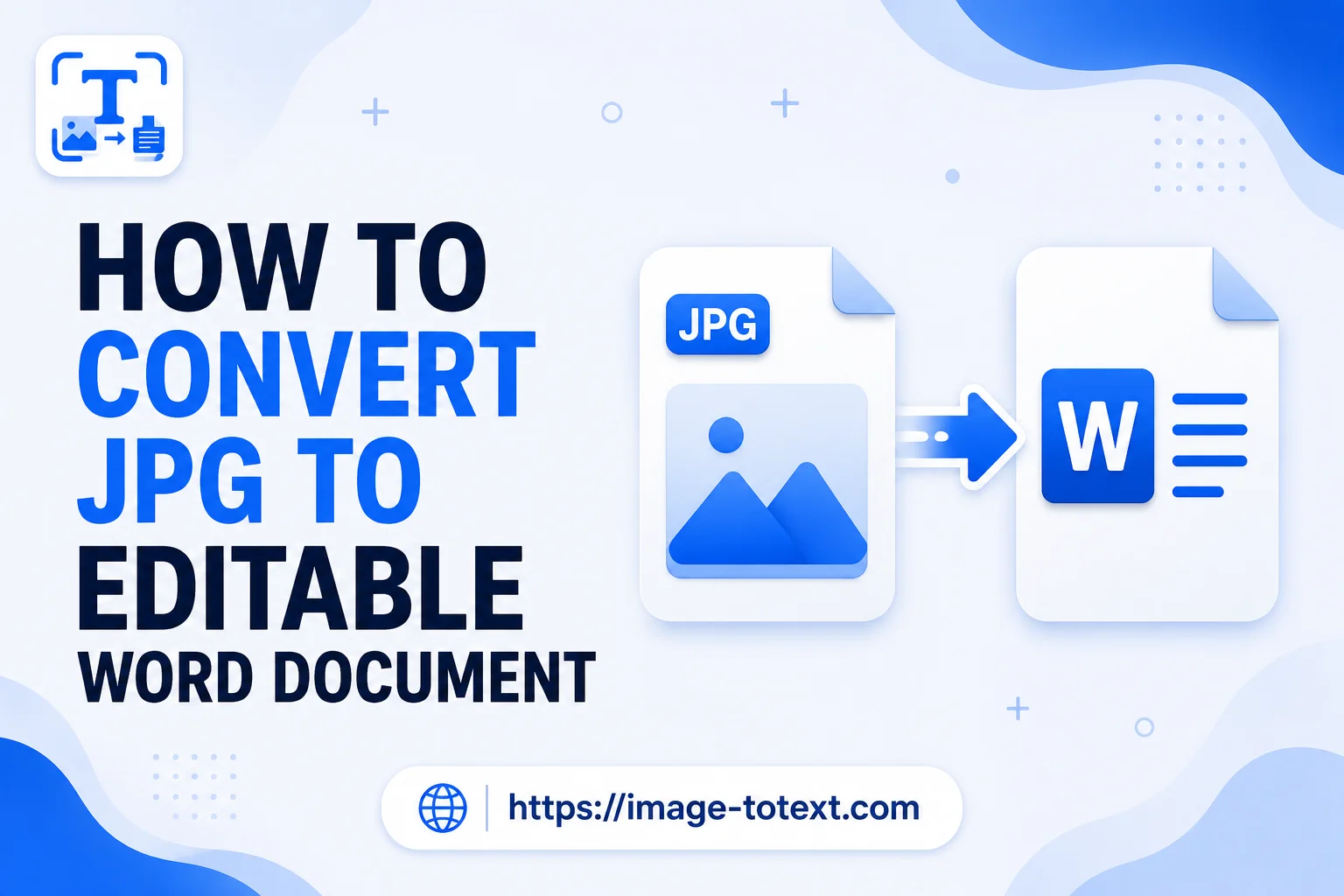
Scanned pages, photographed documents, and screenshots are usually saved as image files (PNG, JPG ). The problem is that an image is just pixels, so you can't select, copy, or edit the text inside it. Converting that image into a Word document solves this by extracting the actual text so it becomes fully editable, searchable, and reusable.
This matters most for people dealing with scanned contracts, old printed records, photographed notes, or handwritten forms that need to be digitized, retyped, or reformatted. Instead of manually retyping an entire page, a tool like image-totext.com (or any similar image-to-Word converter powered by OCR, Optical Character Recognition) reads the text in the image and reproduces it as real, editable content in a .docx file.
The current standard Word format is .docx, used since Word 2007 onward. The older .doc format still opens in modern Word but is largely obsolete and lacks some of .docx's compression and formatting features.
How It Works?
You can't convert an image directly into a Word document. The image first needs to be converted to a PDF, and then the PDF is converted to Word.

1. Upload the image
Click Choose Files and select the image from your device. You can also import from Google Drive or OneDrive. If you have several images, upload them in the order you want them to appear.
2. Create the file
Once all images are uploaded, click Finish to generate the file.
3. Export as Word
When the PDF is created, don't download it yet. Click Export As instead.
4. Choose the export type
Select Word (.docx). Here you decide what kind of document you need:
-
A document where the image stays as an image (not editable text), or
- A document with editable text, which requires OCR (Optical Character Recognition)
5. Enable OCR for editable text
If you want editable text, turn on OCR, then click Convert. Once the file is ready, download it.
OCR Limitations
Some factors affect how accurate the conversion is:
- Printed text converts more reliably than handwriting
- Text on curved pages or photographed at steep angles may appear distorted
- Table columns can become misaligned
- Decorative or stylized fonts increase the risk of recognition errors
Tips for Better OCR Accuracy
- Use sharp, high-resolution images to avoid blurriness
- If scanning, use at least 300 DPI
- Keep the page flat and straight to avoid angle distortion
- Crop out background clutter
- Increase contrast if the text is light grey or faded
- Use even lighting to prevent shadows from obscuring the page
Troubleshooting Common Issues
1. Text isn't editable in Word
This usually means OCR wasn't enabled. Reopen the export screen, turn on "Convert text in scans" (OCR), then convert and download the file again.
2. Text has typos or strange characters
This usually happens when the source image wasn't captured clearly. Try:
- Recapturing the image in better lighting
- Increasing scan resolution
- Cropping the page more tightly around the text
- Using a plain, uncluttered background behind the document
3. Layout looks messy or page breaks are off
This needs formatting cleanup after conversion:
- Adjust margins using Word's Layout settings
- Adjust spacing using Line and Paragraph Spacing
- Manually recreate tables if column alignment matters
4. Handwriting didn't convert well
Handwriting recognition is inherently less reliable. Use a higher-contrast, sharper image and expect only partial results. Manual editing after conversion is usually still needed.
5. File won't upload or processing fails
This is often a file-size or connection issue:
- Check your internet connection and retry
- Resize the image if it's very large
- Upload images in smaller batches if you have several
Is This Right for You?
If you just need to view the image, converting it isn't necessary. But if you need to edit the text, reuse the content, or clean up a scanned page, this workflow saves a lot of manual retyping. Use the five-step flow above with a converter, enable OCR when you need selectable text, and start with the clearest image you can. The better the source, the better the result.
Frequently Asked Questions
Does converting a JPG to Word reduce image quality?
No. The conversion process itself doesn't alter your original image quality, and OCR only extracts the text layer.
Will the formatting look exactly like the original image?
Not always. Complex layouts, tables, or columns may need manual cleanup after conversion.
Can handwritten notes be converted?
Yes, but accuracy is lower than with printed text, and manual correction is usually needed.
Do I need an account to convert files?
Many online converters don't require registration, though this varies by tool.