 Spanish
 French
 German
 Italian
 Portuguese
 English

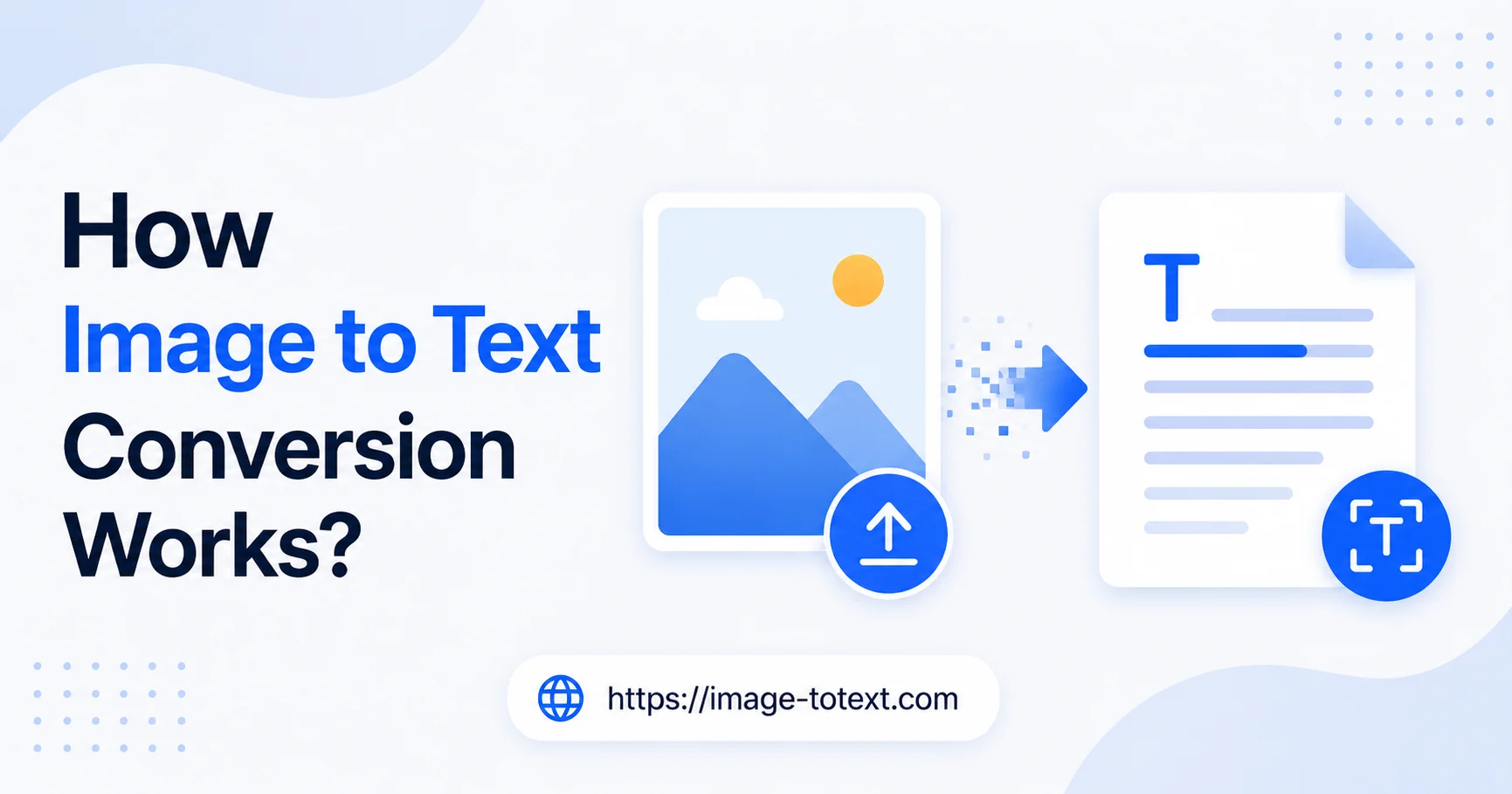
Have you ever looked at a page full of text and wondered why you still have to type it all out yourself?
That is exactly the problem image to text conversion solves. You take one photo, and within seconds, every word from that picture appears on your screen, already typed and ready to copy. No retyping, no wasted time, no manual work.
Here is how this simple ocr technology actually works, what makes it accurate, and where it is quietly saving people hours every single day.

What Is Image to Text Conversion
Image to text conversion is the process of reading the words that are inside a picture and changing them into plain, usable text. The picture could be a photo taken from a phone, a scanned page, or even a screenshot.
The technology that makes this possible is called OCR, which stands for optical character recognition. In simple words, it is a computer program that can look at a picture and recognize letters, numbers, and words, almost the same way a human eye reads a page.
A Simple Real Life Example
Think of a teacher who writes a homework question on a whiteboard every day. A student who missed class asks for a copy of the question. Instead of typing it out by hand, the teacher simply takes a photo of the whiteboard and runs it through an image to text tool. Within seconds, the exact words from the whiteboard appear as typed text, ready to be copied into an email.
The same idea works for office workers digitizing old paper invoices, students copying notes from a textbook, or anyone trying to save the text from a screenshot without retyping it.
How the Process Works Step by Step
Even though the result feels instant, there are a few steps happening behind the scenes.
Uploading the Image
The process begins when you upload a picture, whether it is a photo, a scanned document, or a screenshot.
Cleaning Up the Picture
Before reading the text, the tool often improves the picture a little. It may brighten dark areas, sharpen blurry spots, or straighten a tilted photo. This step makes the letters easier to recognize.
Recognizing the LettersThis is the main part of the process. The tool looks closely at the shapes inside the picture and compares them with known letters and numbers, similar to how a child learns to recognize the alphabet by comparing shapes.
Putting Words in the Right Order
Once individual letters are recognized, the tool groups them into words and arranges them in the same order and layout as they appeared in the original picture.
Showing You the Final Text
Finally, the extracted text appears on your screen. From here, you can copy it, edit it, or download it as a file.
What Affects the Accuracy of the Result
Not every picture converts perfectly. A few simple factors make a big difference.
Image Quality and Lighting
A clear, well lit picture always gives better results than a dark or blurry one. Good lighting helps the tool see every letter clearly.
Straight Versus Tilted Text
If a page in the photo is crooked or tilted, some letters may be harder to detect. Straight, properly aligned text is easier to read for both humans and computers.
Printed Text Versus Handwriting
Printed text is far easier to convert accurately, often reaching close to full accuracy on a clear page. Handwriting is more difficult because every person writes differently, so accuracy can vary depending on how neat or messy the handwriting is. Neat, spaced out handwriting always converts better than fast, joined up writing.
File Types and Languages Supported
Most image to text tools accept common picture formats such as JPG, PNG, and WEBP, along with scanned documents. Many tools can also read text in dozens of different languages, which makes them useful for people all around the world, not just those writing in English.
Is It Safe to Use These Tools
A good image to text tool should process your picture quickly and should not keep your files stored longer than necessary. If you are uploading anything personal, such as an ID card, a receipt, or a private document, it is worth using a tool that clearly explains how it handles your files and removes them after conversion.
Who Uses Image to Text Conversion
This tool is helpful for almost everyone, not just one type of user.
Students
Students use it to turn photos of textbook pages or handwritten notes into text they can study, organize, or paste into their assignments.
Teachers
Teachers often need to share printed or handwritten material digitally, and this tool saves them from retyping everything by hand.
Offices and Businesses
Many offices deal with paper invoices, receipts, and forms that need to be entered into computer systems. Instead of manual data entry, staff can simply scan the document and get accurate text within seconds.
Everyday Personal Use
People also use this tool for smaller everyday tasks, such as saving text from a screenshot, an old letter, or a printed recipe passed down in the family.
How This Compares to Typing Manually
Typing out a full page by hand can take several minutes and often leads to small mistakes along the way. Image to text conversion turns that same task into something that takes only a few seconds, with the added benefit of keeping the original wording exactly as it appeared in the picture.
Final Thoughts
Image to text conversion takes something that used to require patience and manual typing and turns it into a task that takes only a few seconds. Whether it is a page from a book, a screenshot, an invoice, or an old handwritten letter, this simple technology saves time for students, teachers, businesses, and anyone who needs to turn a picture full of words into real, usable text. If you want to try it yourself, Image to Text lets you upload a picture and get your text back in seconds, free and without any signup.